Hey everyone! 
If you’ve ever tried to upscale or enhance a video only to find watermarks, sign-up walls, or quality loss, this guide is for you.
I spent time testing both desktop and online tools that are completely free, don’t add watermarks, and don’t require registration — plus one pro tool that’s worth paying for if you need more power.
 Part 1. Desktop Free AI Video Enhancers (No Watermark, No Sign-Up)
Let’s start with the desktop apps that let you enhance videos locally — no cloud uploads, no account needed.
 1. HandBrake
A classic open-source video transcoder.
While not a true AI upscaler, HandBrake offers precise encoder controls via its Constant Quality Rate Factor (RF). Adjust the RF to improve visual clarity when re-encoding videos into MP4 or MKV — totally watermark-free.
Pros: Free, open-source, full encoder control.
Cons: No AI models, slower processing, steep learning curve.
 2. Video2X
An open-source AI enhancer combining Real-ESRGAN and RIFE for super resolution and frame interpolation. Great results, but setup can be complex.
Pros: Multiple AI models, frame interpolation, cross-platform.
Cons: Requires dependencies and a strong GPU, not beginner-friendly.
 3. Waifu2x Extension GUI
Bundles Real-ESRGAN, Anime4KCPP, and waifu2x in a single GUI. Works beautifully for animation and stylized video.
Pros: GPU acceleration, batch processing, multi-model support.
Cons: Windows-only builds, large output files, minor driver issues.
 4. iMovie
Free for macOS/iOS users. Not AI-based, but its Enhance feature improves brightness, color balance, and audio. Perfect for quick touch-ups and sharing.
Pros: Free, simple UI, auto enhancement.
Cons: No true upscaling, Mac-only, limited pro controls.
 Part 2. Online AI Video Enhancers (No Watermark, No Sign-Up)
If you prefer browser-based tools, these offer fast, no-login options. Keep in mind: upload limits, privacy, and speed depend on your connection.
 1. Unblurimage.ai
Specializes in removing blur and restoring detail. You can upscale to 2K or 4K automatically, no registration needed.
Pros: Fast, simple, one-click.
Cons: File size limits, variable quality, privacy concerns.
 2. Imgupscaler
Originally an image enhancer, now supports video upscaling to 4K. Great for short clips.
Pros: Easy UI, no sign-up, 4K support.
Cons: Limited length for free users, upload/download time.
 3. VideoPlus.ai
Offers free online enhancement and upscaling for short clips. Ideal for social media creators who need quick clarity boosts.
Pros: No watermark, no login, fast for short videos.
Cons: Limited control, privacy risks with uploads.
 Part 3. When You Need More — HitPaw VikPea AI Video Enhancer
While free tools are handy, they often lack AI precision, batch processing, and real-time speed.
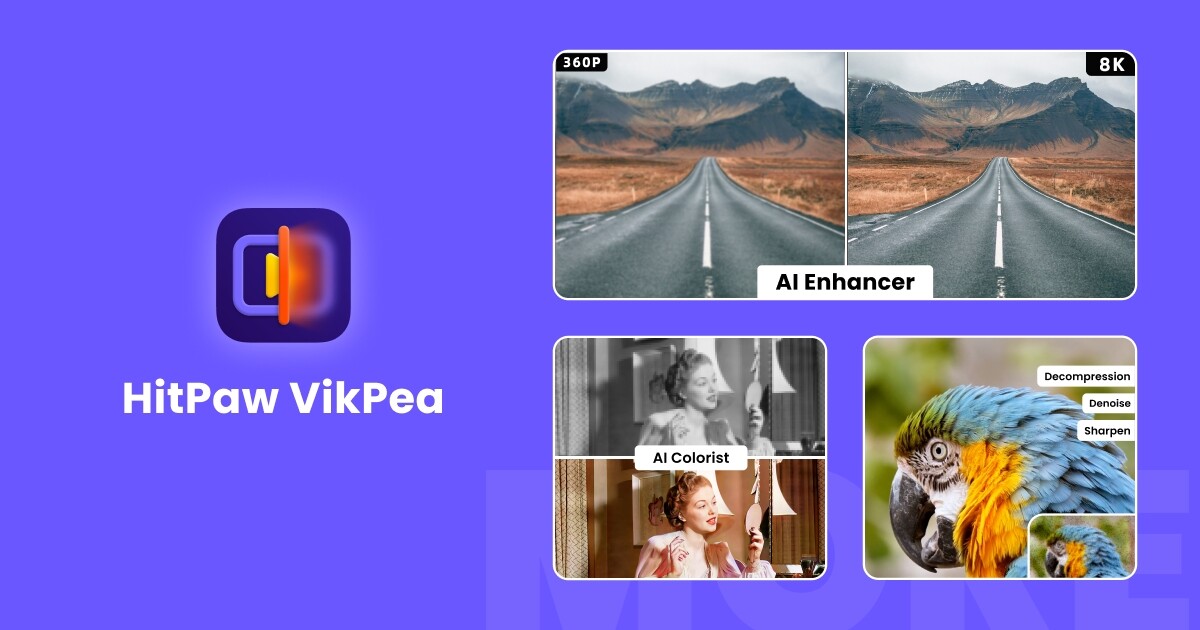
That’s where HitPaw VikPea shines — a pro-grade AI video enhancer for desktop. It includes:
-
AI upscaling to 4K/8K
-
Portrait, Sharpen, Repair, and General Models
-
Noise reduction and color correction
-
Batch processing and frame interpolation
How it works:
 Import your video.
 Choose an AI model (e.g., Portrait, Sharpen).
 Preview, then export in up to 8K quality — watermark-free.
If you work with older or damaged footage, or want professional-level enhancement, VikPea is easily worth it.
 Conclusion
Free AI video enhancers do exist without watermarks or sign-up walls — from open-source tools like Video2X and Waifu2x Extension GUI, to convenient online options like Unblurimage.ai.
However, if you need speed, consistency, and high-end AI restoration, tools like HitPaw VikPea offer that premium polish without hassle.
Hope this guide helps you choose the best setup for your workflow!
Would love to hear what other AI enhancers you’ve tried — drop your favorites below 