Pinterest is full of inspiring visuals, but often when you save them, the image quality drops—blurry, pixelated, or overly compressed. This article dives into why Pinterest images lose clarity, and shows how to download & restore them to HD for design, printing, or sharing.
Why Pinterest Images Often Look Blurry
Pinterest compresses uploaded photos to speed loading, downscales images that exceed certain dimensions, and often you end up saving a preview version—not the original. Even screenshots or direct “Save As” actions can result in lower-quality files.
How to Save Pinterest Images with the Best Resolution
Use browser extensions (like PinDown), avoid screenshots, open the image in a new tab (desktop preferred), and select the highest-quality version available. Avoid mobile apps or compressed formats when possible.
HitPaw FotorPea to the Rescue
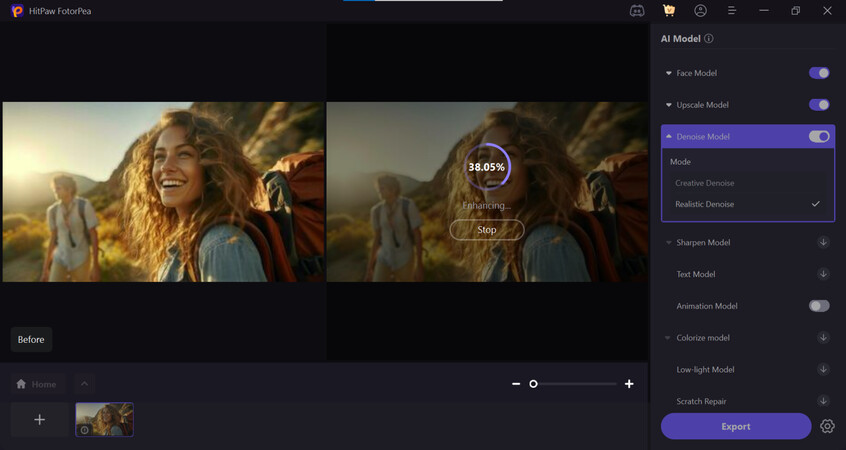
Even after download, you can restore and enhance. HitPaw FotorPea uses AI to denoise, sharpen, and upscale low-quality images. Just upload, pick the “Realistic Denoise” model, preview, and export the improved HD version. It’s ideal for giving Pinterest-downloaded images new life in your projects.
If you often collect inspiration from Pinterest, this guide and HitPaw FotorPea will help ensure your saved images stay crisp and usable. 
Read more: [How to Download and Enhance Pinterest Images in HD]